CRM
The CRM section includes tools for managing leads, calendars, and campaigns.
The CRM module enables efficient lead and customer management.
Viewing Leads
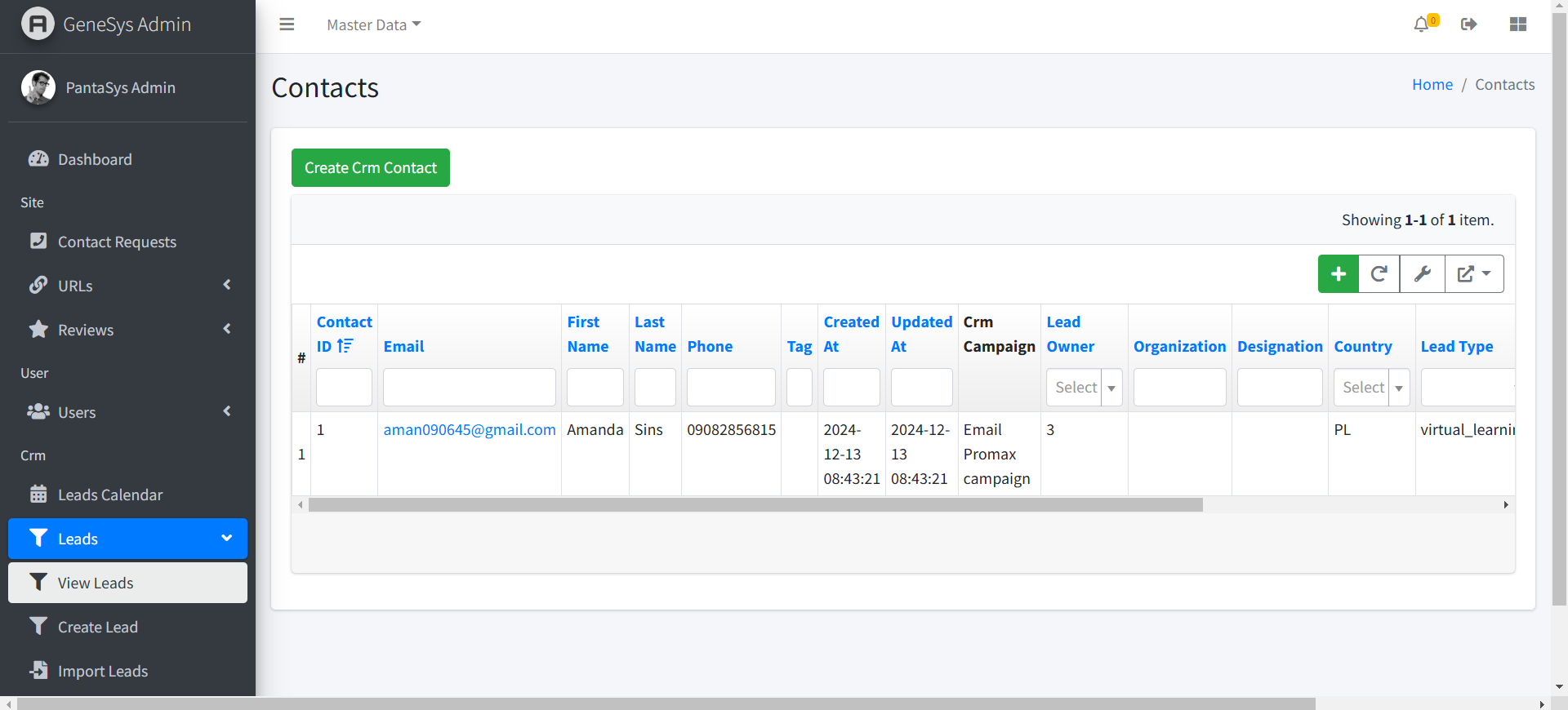
- Actions
This column contains interactive icons for various actions:
View Icon: Opens a detailed view of the user.
Delete Icon: Removes the user from the system.
Update Icon: Opens the user form for editing.
Leads:
View Leads: Displays a list of all existing leads.
Create Lead: Allows users to add new leads to the system.
Import Leads: Facilitates the import of leads from external sources.
This section provides a detailed overview of the “Leads” feature, including navigation, CRUD operations, table columns, and additional functionalities.
Managing Leads
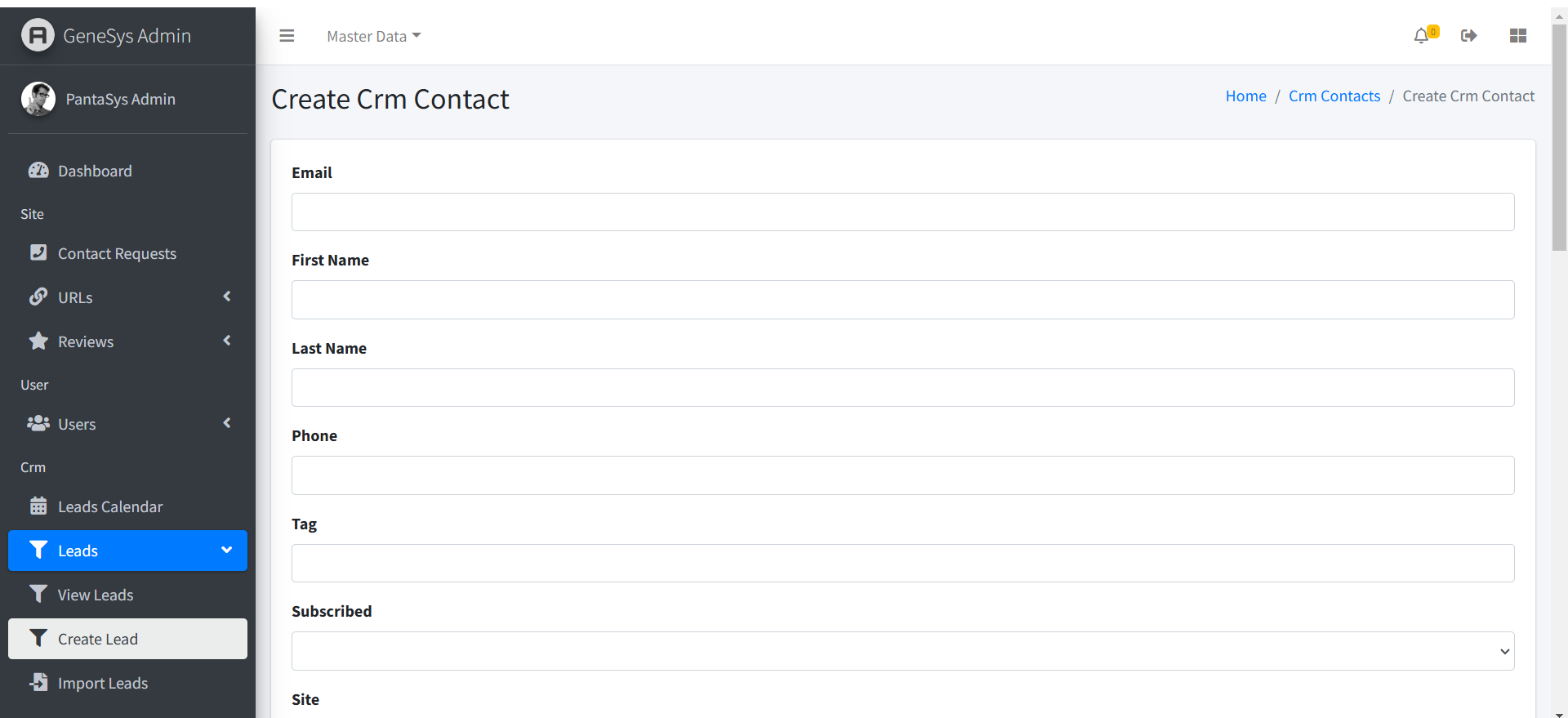
Create a Lead
Navigate to the View Leads page.
Click the Create CRM Contact button.
Fill in the required fields and click Save.
View a Lead
Navigate to the View Leads page.
Leads are displayed in a table format with all relevant details.
Update a Lead
On the View Leads page, locate the lead you want to modify.
Click the Edit button in the Actions column.
Make the necessary changes and click Save.
Delete a Lead
On the View Leads page, locate the lead you want to delete.
Click the Delete button in the Actions column.
Confirm the deletion to remove the lead permanently.
Lead Table Columns
Contact ID: - A unique identifier assigned to each lead. - This column helps to differentiate between leads easily.
Email: - The email address of the lead. - This column allows users to view and verify contact information.
First Name: - The first name of the lead. - This field provides clarity on the lead’s identity.
Last Name: - The last name of the lead. - Together with the first name, it fully identifies the lead.
Phone Number: - The contact phone number of the lead. - This column is used for direct communication with the lead.
Tag: - A label or keyword associated with the lead. - Tags can help categorize or filter leads for better management.
Created At: - The date and time when the lead was created. - This field helps track when the lead was added.
Updated At: - The date and time when the lead was last updated. - Useful for identifying recent changes.
CRM Campaign: - A text column containing the name or type of CRM campaign associated with the lead. - This helps link leads to specific marketing campaigns.
Lead Owner: - A dropdown column allowing selection of the lead’s owner. - The dropdown is searchable for convenience.
Organization: - The organization the lead is associated with. - This provides context on the lead’s professional background.
Designation: - The professional title or role of the lead within their organization. - Helps understand the lead’s position in their company.
Country: - A searchable dropdown that provides a list of countries to select from. - Users can easily assign a country to the lead for regional tracking.
Lead Type: - A dropdown containing predefined lead types. - Examples include “Prospect,” “Customer,” or “Partner.”
Product: - The product or service associated with the lead. - This column helps link leads with specific offerings.
Lead Status: - A dropdown containing predefined statuses for the lead. - Examples include “New,” “In Progress,” “Closed.”
Source: - Indicates how the lead was acquired (e.g., “Website,” “Referral,” “Event”). - Helps track lead generation channels.
Follow-up Date: - A date and time column for scheduling follow-up actions. - Ensures timely communication with leads.